
PRISM Material From Image
PRISM Material From Image creates PRISM-compatible material maps and a PRISM Surface material from a readable image. The source can be a photograph, illustration, scan, painted texture, or another usable image; it is not limited to photographs. This is a creation workflow, not a third material type beside Surface and Decal.
Open it from Tools > PRISM Surface > Material From Image. Its pages are Source, Process, Preview, Export, and Advanced.
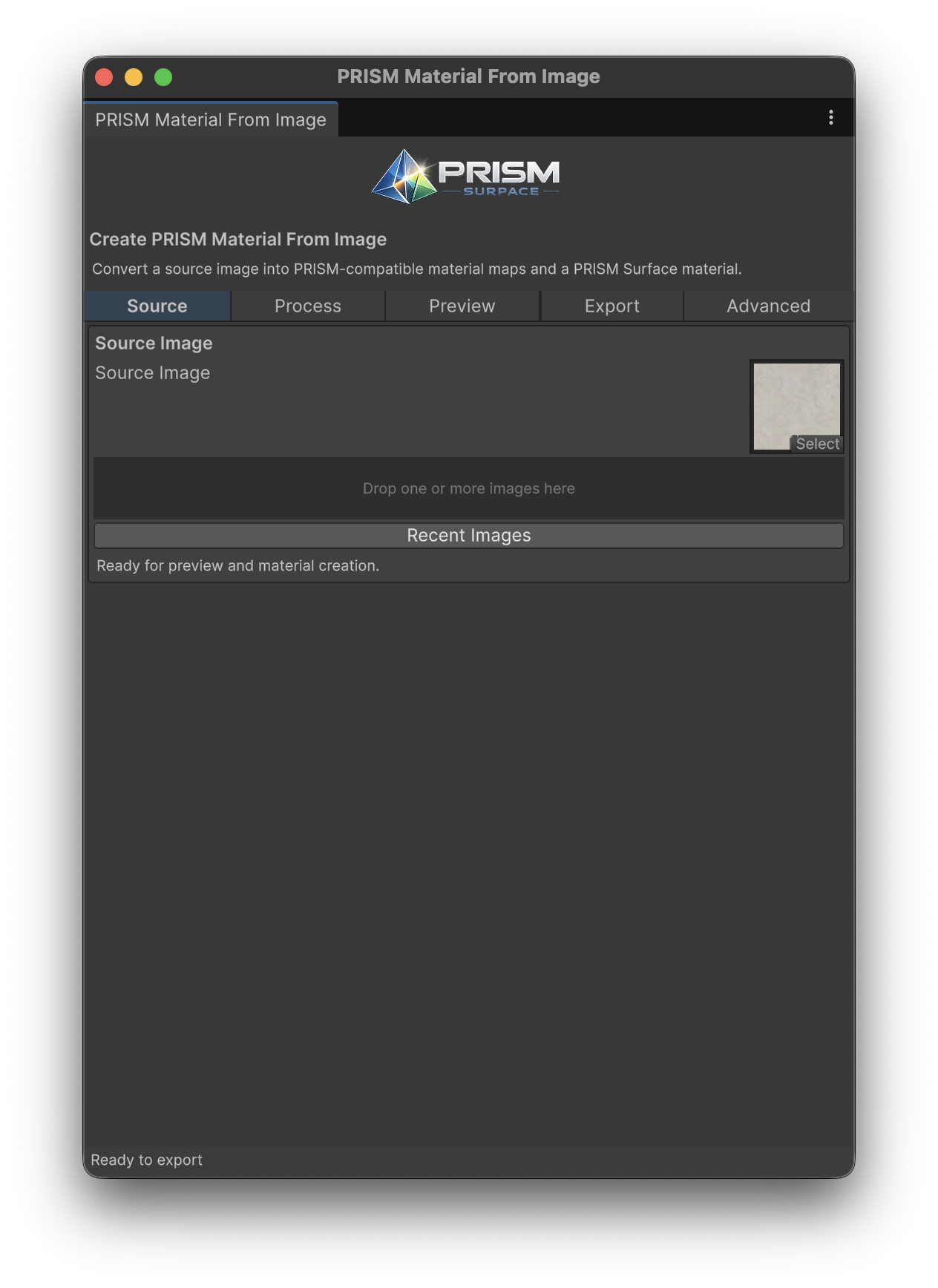
Material From Image with the workflow navigation and a readable source image loaded.
Workflow
Section titled “Workflow”- On
Source, assign or drop a readableSource Image. You can also use recent images or build a batch. - On
Process, choose a preset and folder template, optionally use Image Cleanup, and tune the Material Look controls: Height, Shape Strength, Roughness, Cavity, and Surface Detail. - On
Preview, inspect Original/Cleaned image views plus generated Height, Normal, Roughness, AO, Detail, Alpha, and Mask maps. These previews are editor-only until export. - On
Export, set Material Name, Save Location, Map Quality, and whether toCreate Scatter Profiles. - Click
Create PRISM Surface Materialto write the final assets.
The default folder template is PRISM Material From Image; Source Image Folder and Selected Folder are available when generated content should live beside project content. The output path must be inside the Unity project’s Assets folder.
Read/Write requirement
Section titled “Read/Write requirement”The source must be a readable Texture2D. If it is not, the Source page explains the problem and offers an import-setting action where possible. Enable Read/Write, wait for the reimport, then refresh the preview.
Exported assets and bridge workflow
Section titled “Exported assets and bridge workflow”Export generates the PRISM Surface material and its maps. When Create Scatter Profiles is enabled, it can also create bridge assets for scatter:
- A managed PRISM Surface material.
- A starter Mesh Quad scatter profile.
- A local HDRP/Unlit alpha-cutout Mesh Quad material template used by that profile.
- A starter HDRP Decal scatter profile.
- A managed HDRP Decal material template.
Surface and Decal materials are validated as part of export so their PRISM/HDRP setup is ready without opening every raw material Inspector first. The bridge assets are starting points: load a profile onto a receiver, inspect source/output choices, and preview before generating.
Map Quality offers Source Size, 4096 Max, 2048 Max, 1024 Max, and 512 Max. Choose the smallest size that preserves the material at its intended use distance; high-resolution outputs use more project memory and import time.
Advanced contains Roughness Bias, Cavity Blur, Cleanup Contrast, Extract Alpha, and Alpha Cutoff. Use these after the basic material look is established. Extracted alpha is particularly useful when the final artwork needs a cutout-oriented scatter texture, but it does not automatically make every source suitable for Mesh Quads.
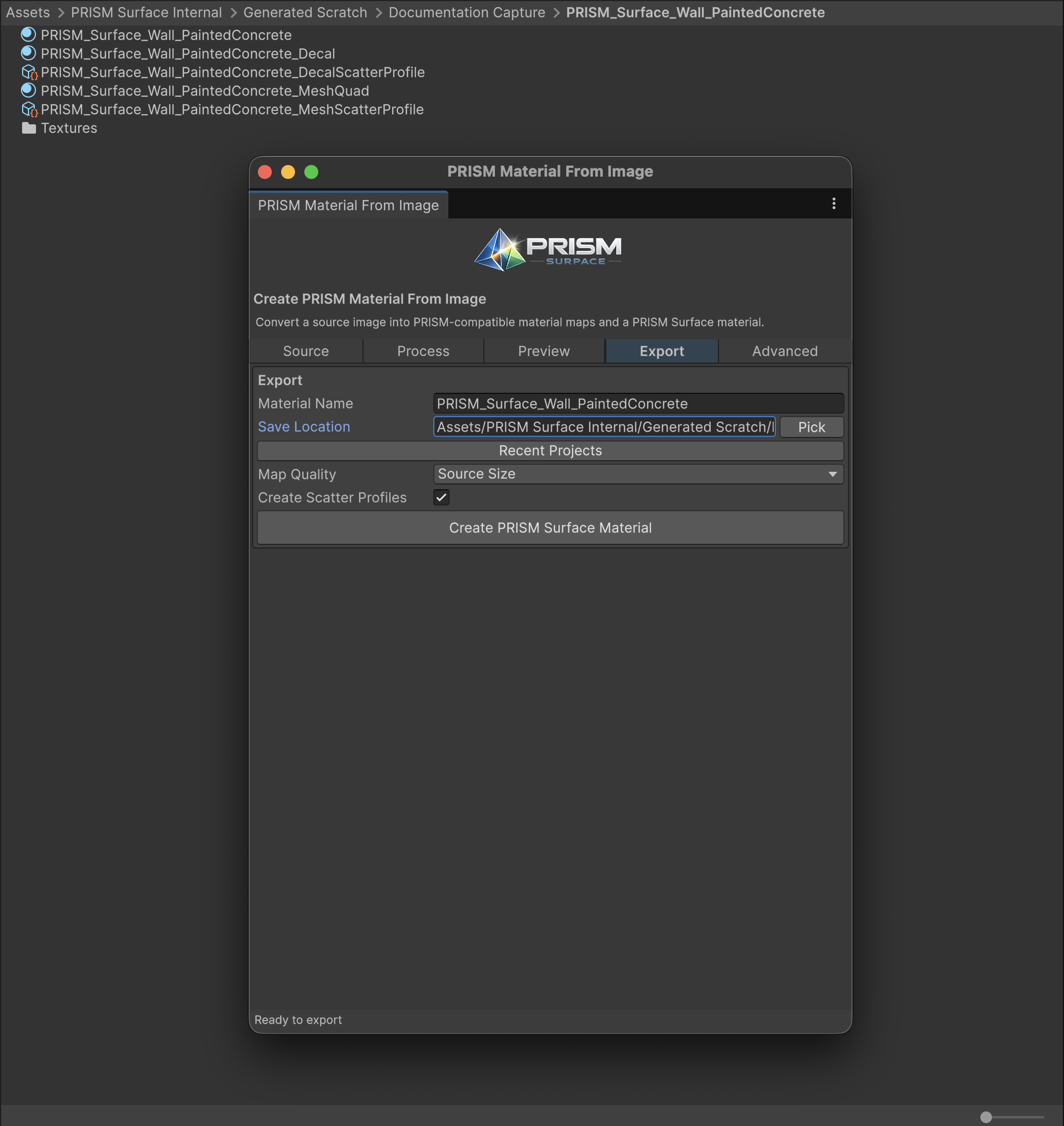
Export with Create Scatter Profiles enabled and the generated assets visible in Project.
Common expectations
Section titled “Common expectations”- Preview changes are not exported until
Create PRISM Surface Materialis pressed. - A generated PRISM Surface material is for a receiver surface; use the generated alpha-cutout bridge template for Mesh Quad scatter when appropriate.
- Generated sampled texture maps use mipmaps, Repeat wrapping, and Trilinear filtering while preserving their intended normal-map and sRGB/linear import roles. Do not routinely change this policy; test deliberately different filtering only when the target material requires it.
- If export fails, first check source readability, material name, and that Save Location is under
Assets.