
Mesh Quad, HDRP Decal, and Mixed Output Workflows
Mesh Quad output
Section titled “Mesh Quad output”Mesh Quad output creates generated card geometry attached to the source surface. Choose it for surface details that need explicit geometry, alpha-cutout shapes, or a result that does not rely on HDRP decal projection.
Assign a cutout-capable Material Template. The shipping starting point is Materials/Mesh Quad/PRISM_MeshQuad_Cutout_Template.mat, an HDRP/Unlit double-sided alpha-cutout material. Do not use a receiver-oriented PRISM triplanar surface material as the card template for transparent source artwork.
Useful controls:
Surface Liftkeeps cards from z-fighting with the receiver.Close Mesh To Surfacebrings wall-attached or thin details closer to the receiver.Keep Inside Source Facefits Mesh Quad card footprints inside the sampled coplanar source-face group.Enable GPU Instancingis appropriate for repeated generated cards using compatible material setup.
Start with a small Surface Lift and inspect at normal gameplay distance. Too much lift makes cards visibly float; too little can flicker against the receiver. On sharp corners, reduce card size, enable face fitting, or use a more suitable output type.
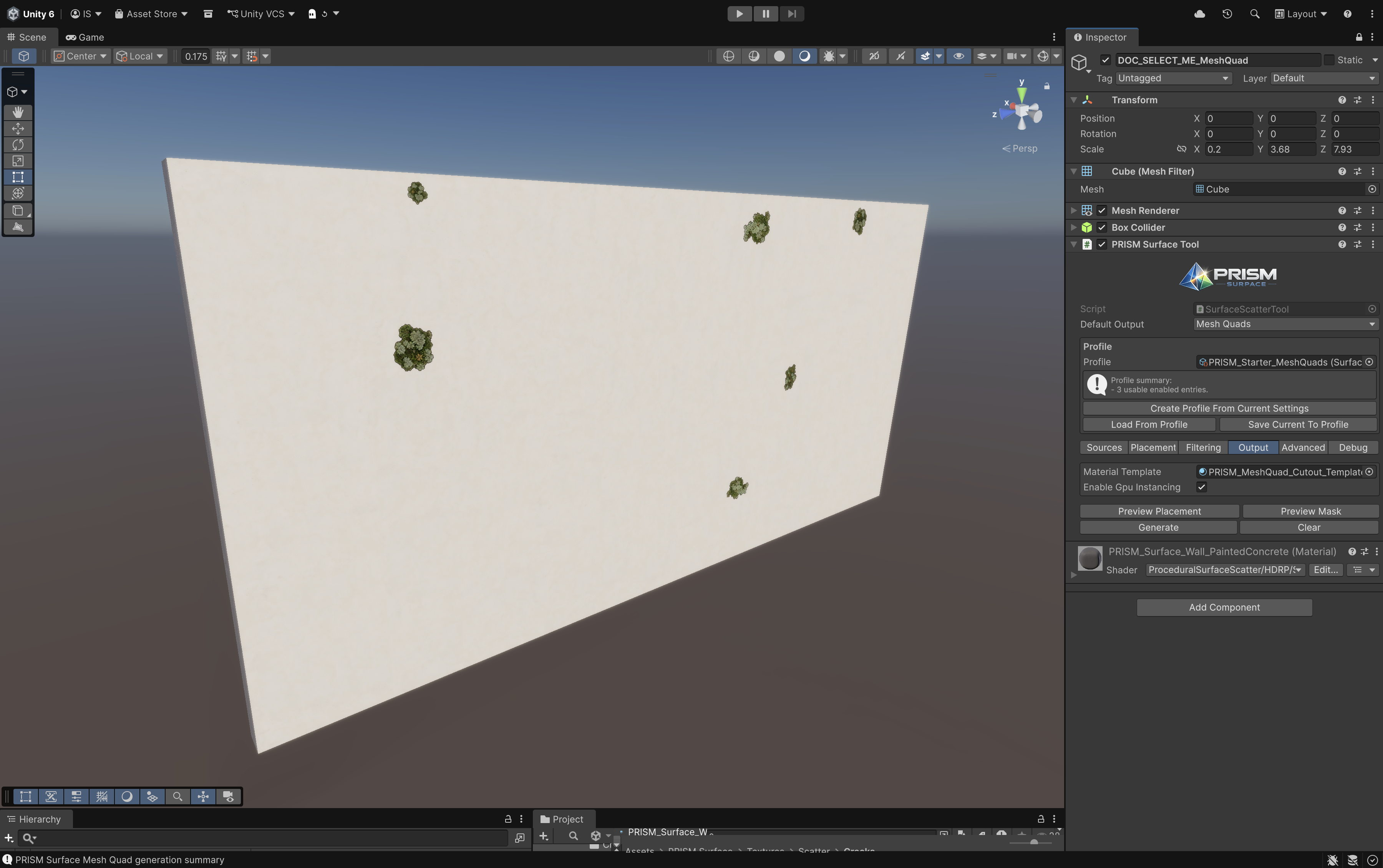
Mesh Quad cards on the receiver with the Mesh Quad output settings visible.
HDRP Decal output
Section titled “HDRP Decal output”HDRP Decal output creates HDRP Decal Projectors. Choose it when projected detail should participate in HDRP decal channels such as Base Color, Normal, AO, smoothness, metallic, or emission.
Assign a suitable Decal Material Template. Projection Depth determines the projector volume depth. Use the smallest depth that reliably includes the intended receiver surface. Surface Lift offsets the projector from the source surface; it must remain lower than Projection Depth.
Keep Inside Source Face also applies to HDRP Decal projector footprints. It fits the final footprint inside the sampled coplanar source-face group; curved or finely triangulated receivers can make those groups small, reducing the final size or rejecting a placement when no meaningful fit remains. This shared fitting is separate from Edge Bleed Guard, which rejects unsafe projector footprints rather than fitting them.
Decal Draw Order is an integer from -50 to 50. Higher values are drawn in front where decals overlap. Other HDRP output controls include draw distance, angle fades, fade factor, and whether the decal affects transparency.
Preventing edge bleed
Section titled “Preventing edge bleed”An HDRP projector volume can reach nearby or intersecting receiver geometry. Edge Bleed Guard rejects decals whose final footprint is too close to a source mesh boundary, including concave boundaries and holes. It protects the source boundary; it cannot guarantee that nearby geometry outside the source mesh will not receive a deep projection.
Use the Balanced Hard Surface or Tight / Thin Surface edge-protection starting points, then inspect the result. Edge Padding increases the border excluded around source-face boundaries. Depth-Aware Padding adds Projection Depth multiplied by Depth Padding Scale to that safety margin.
For a tight or thin receiver, reduce Projection Depth first, use a practical Surface Lift, enable Edge Bleed Guard, and inspect corners and intersections. Angle fade defaults may be intentionally disabled for compatibility with mirrored or negatively scaled meshes; enable and test them only after checking receiver-normal behavior.
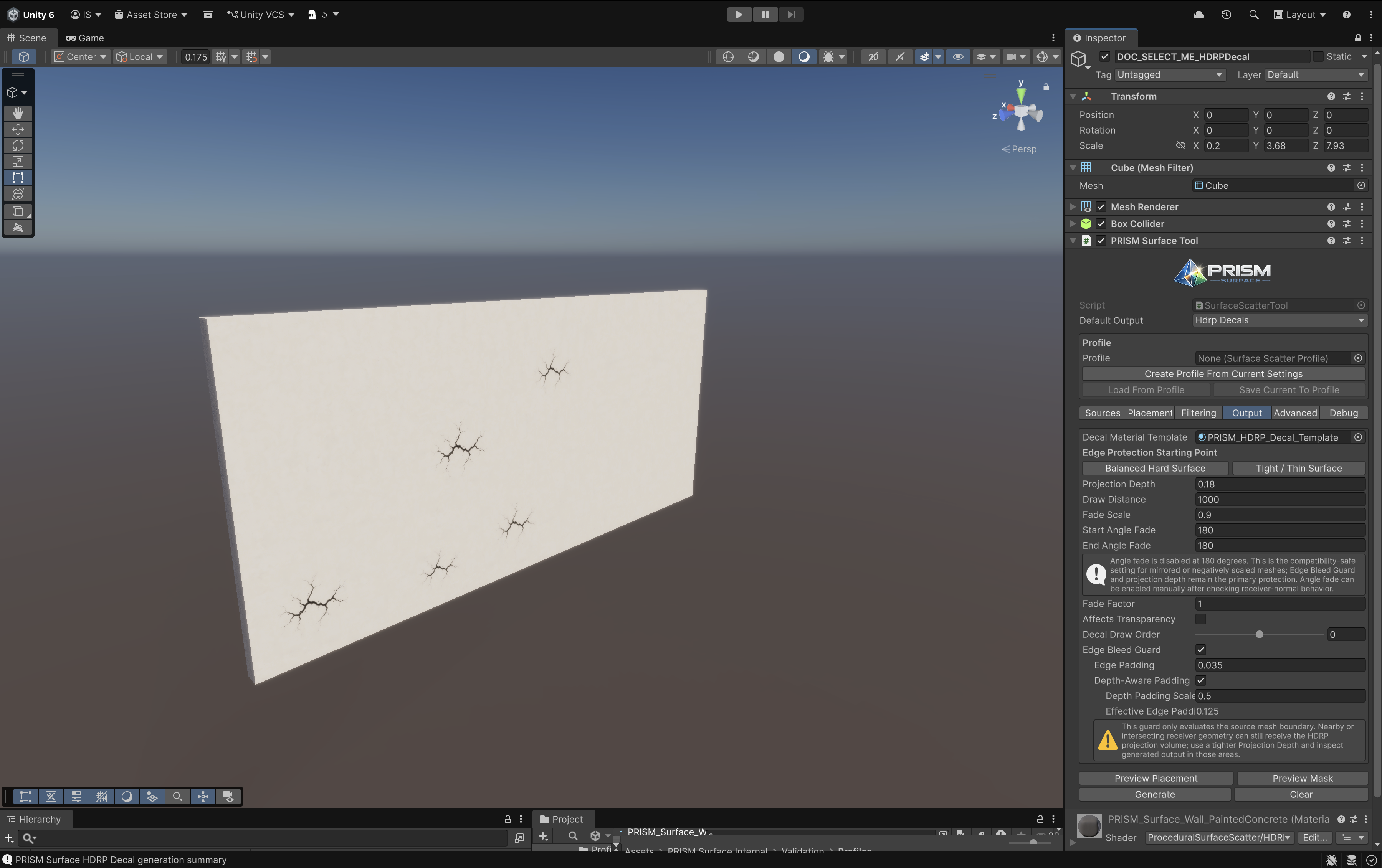
HDRP Decal output with projector depth and Edge Bleed Guard controls visible.
Mixed output
Section titled “Mixed output”One PRISM Surface Tool can generate Mesh Quads and HDRP Decals together. Set Default Output to the type most entries should use, then choose Use Default, Mesh Quads, or HDRP Decals per source. When both routes are active, the Output tab shows both output groups.
Generate once to create both groups; Clear removes both. Preview Placement uses the currently selected Source entry’s output rules. Preview Mask uses Mask Preview Entry when selected, otherwise the current source entry, so output-specific fitting and safety rules stay clear.
Global Density is a shared candidate budget. In a mixed setup it is divided between enabled, usable output groups by their combined Chance Weight. A source with Override Density has an independent budget and is not reduced by Chance Weight; independent budgets add to the global work, so apply them deliberately and pair them with Soft Limits where appropriate.
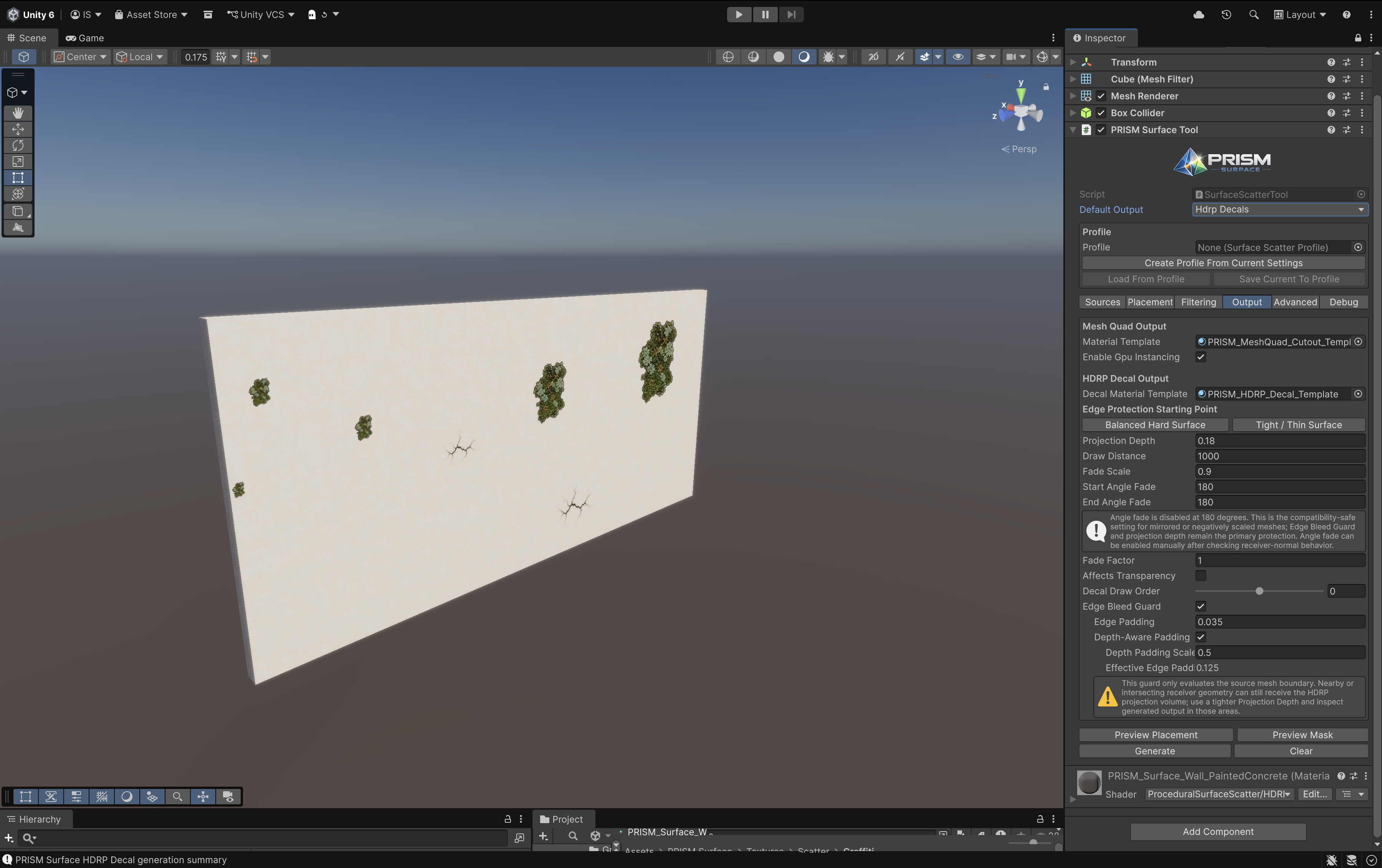
Mixed output keeps Mesh Quad and HDRP Decal settings together while showing both generated result types.
Next: Placement and filtering.