
Preview, Profiles, and Practical Recipes
Preview Placement and Preview Mask
Section titled “Preview Placement and Preview Mask”Use the two preview buttons for different questions.
Preview Placement evaluates the full generation decision: candidate attempts, source selection, density, local overrides, scale, rotation, planar offset, masks, footprint checks, face fitting, slope, noise thinning, Object Detection, HDRP decal edge safety, and spacing. It shows accepted and rejected result stamps, with optional rays and rejection categories in Debug. Use it when the final generated count or location is surprising.
Preview Mask shows only the selected mask’s accepted and blocked region. It is faster for tuning Material Base Map selection, UV masks, radial/object-space patterns, Noise Patches, and drip-mask regions. A correct mask preview does not guarantee a generated result: other placement rules can still reject it.
When Mask Preview Entry is set in Debug, Preview Mask uses that source; otherwise it follows the selected source tab. This is particularly useful when one entry overrides the global mask.
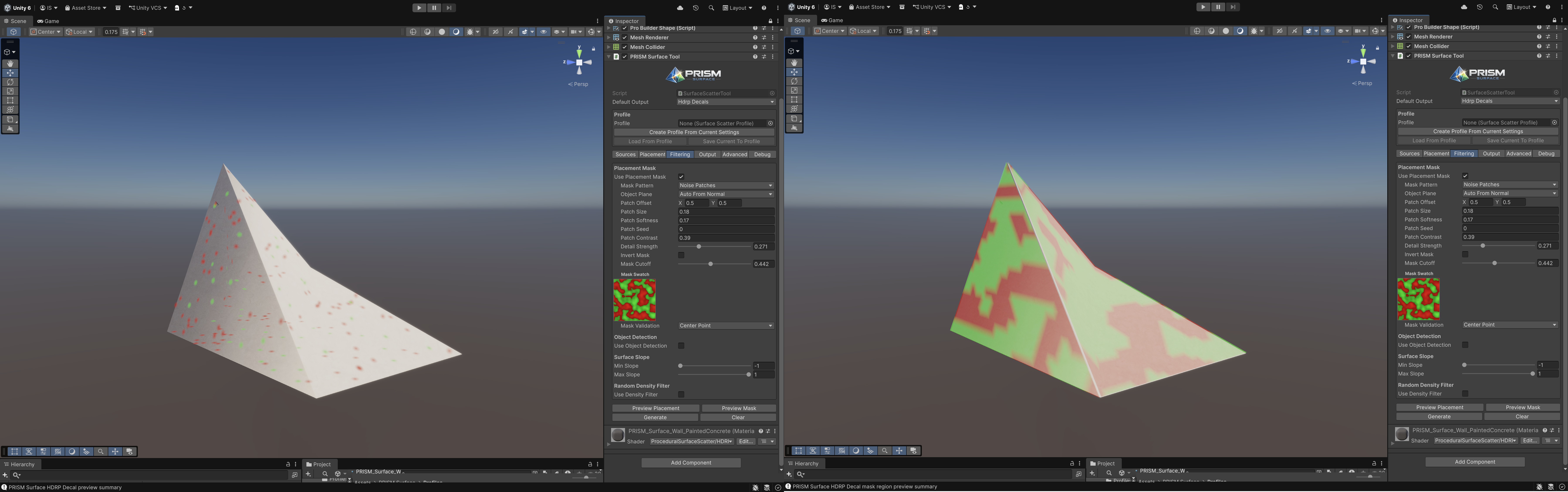
Preview Placement shows accepted/rejected stamps; Preview Mask shows the clean allowed/blocked overlay.
Profiles
Section titled “Profiles”SurfaceScatterProfile assets store PRISM Surface Tool settings so an artist can reuse a proven workflow. Profiles preserve Default Output and each source’s output routing, including mixed Mesh Quad/HDRP Decal setups.
The package includes two starter profiles:
Profiles/PRISM_Starter_MeshQuads.asset— moss and lichen sources sized and spaced for the shipping Mesh Quad cutout template.Profiles/PRISM_Starter_HDRP_Decals.asset— graffiti and crack sources with wall-oriented decal settings and edge protection.
Use the profile actions at the top of the PRISM Surface Tool:
| Action | Result |
|---|---|
Create Profile From Current Settings |
Creates a new reusable profile asset from this component. |
Load From Profile |
Replaces this component’s settings with the selected profile. |
Save Current To Profile |
Overwrites the selected profile with current component settings. |
Read the confirmation dialogs: loading changes the scene component, while saving changes the profile asset. A profile is a settings asset, not generated output; load it onto another compatible receiver, then Preview Placement before Generate.
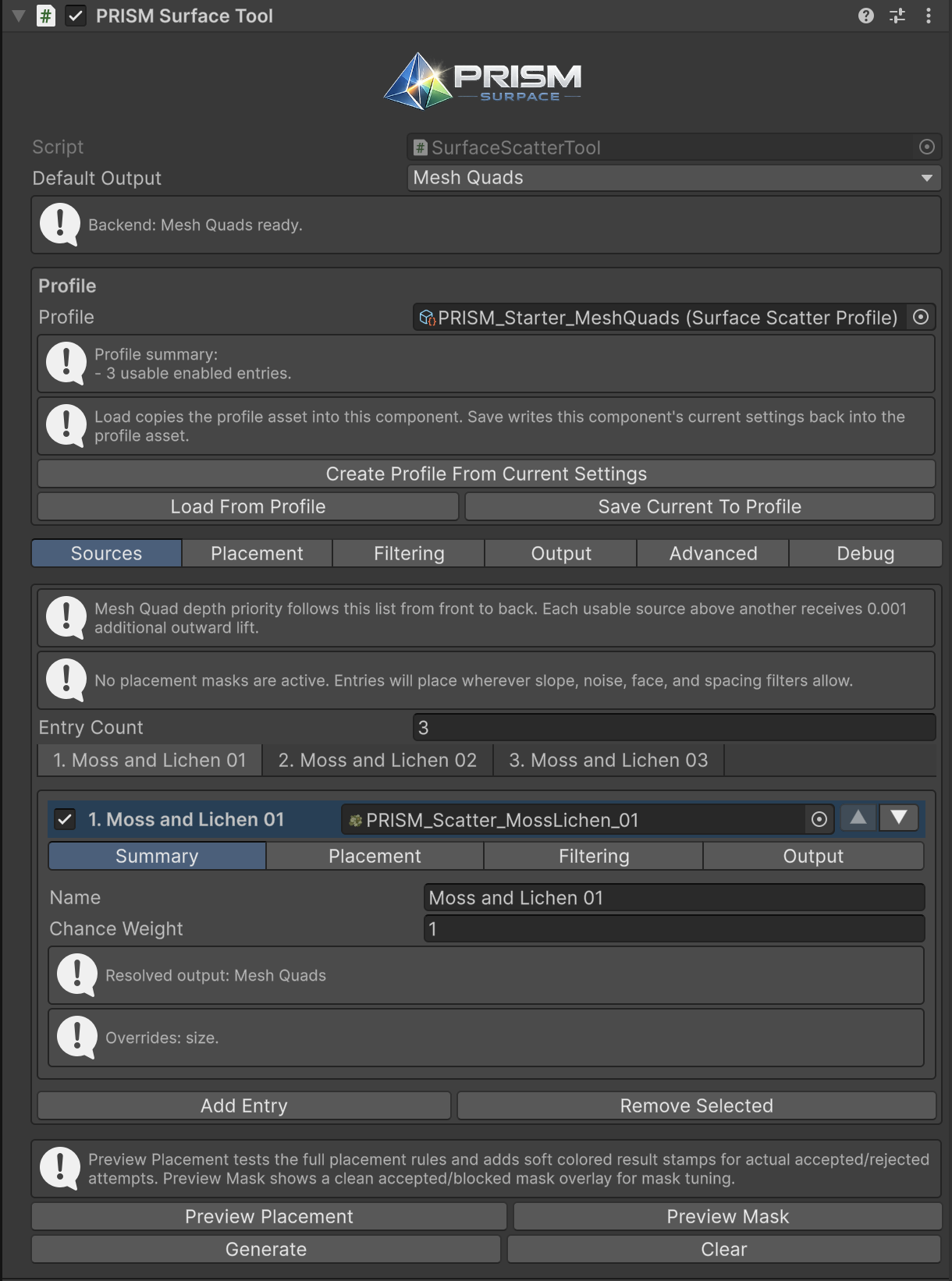
The same Tool overview shows the assigned profile and all three profile actions.
Recipes
Section titled “Recipes”Dirt or moss with Mesh Quads
Section titled “Dirt or moss with Mesh Quads”Use a cutout source texture, route it to Mesh Quads, assign the shipping Mesh Quad cutout template, and tune Scale Range plus Minimum Spacing at low density. An ordinary scatter source texture does not need Read/Write enabled; enable it only when a pixel-inspection workflow specifically requires it, such as alpha-bounds alignment. Add Noise Patches or a Material Base Map mask only after the unmasked result reads well. Use Footprint validation if large cards visibly cross a masked edge.
Graffiti or cracks with HDRP Decals
Section titled “Graffiti or cracks with HDRP Decals”Route the source to HDRP Decals and use a suitable decal template. Begin with the Balanced Hard Surface edge-protection setting, then lower Projection Depth until the intended surface remains covered without reaching neighboring geometry. Inspect hard corners at the expected camera distance.
Mix cards and decals on one receiver
Section titled “Mix cards and decals on one receiver”Set the majority output as Default Output. Route cutout moss/dirt sources to Mesh Quads and surface-response marks to HDRP Decals. Configure both materials in Output. Keep density conservative first, because the shared candidate budget is divided by active output-group Chance Weight; use independent density only for an entry that genuinely needs it.
Place moss around a prop; keep other detail away
Section titled “Place moss around a prop; keep other detail away”Create an empty helper at the prop, assign it as an Object Detection target, and use a Circle, Ellipse, Rectangle, or Object Bounds shape. On the moss entry, override Object Detection to Place Around, set Near/Far Range, and give it a dedicated Density if needed. On the unwanted detail entry, override Object Detection to Avoid using the same target.
Make an anchor drip streak
Section titled “Make an anchor drip streak”Assign a leak/stain source, choose Under Anchor / Drip Streaks, add an anchor transform, and start in Edge Guided mode. Adjust Streak Count, Coverage, Fit Width To Edge, and Streak Length Variation in that order. Enable alpha-bounds alignment only when transparent source padding makes the visible top edge misalign.
Image to PRISM material to scatter profile
Section titled “Image to PRISM material to scatter profile”Create a PRISM material from a readable image with Material From Image. Enable Create Scatter Profiles during export if you want the optional Mesh Quad and HDRP Decal bridge assets. Inspect the exported result, then load its starter profile onto a receiver and adjust density/output for that receiver.
Next: PRISM Surface materials.